FAQ About CleanTalk Anti-Spam
Features
- How do IP/Email blacklists work?
- Is CleanTalk Compatible with CloudFlare?
- Is CleanTalk Compatible with a website proxy?
- Does the anti-spam plugin work with Accelerated Mobile Pages (AMP)?
- What if I can't find a price list of a suitable tariff plan?
Getting prepared
- The Access Key: Where to Find, and How to Use
- What are the hosting requirements to install the plugin/module CleanTalk on my site?
- Should I change anything in the plugin's settings or in my CleanTalk Control Panel when I switch from HTTP to HTTPS or vice versa?
Payment
- Is it paid?
- I want to connect two resources to the service. Do I have to register two accounts, or can I use the same key?
- Description of the payment process for the CleanTalk Anti-Spam license
- Is there any auto-payment or auto-extension service?
- Cases of refunds, getting invoices, correcting the wrong payments, and stopping the CleanTalk service
- Premium Notice is still being shown in the WordPress backend after the payment.
Working with Anti-Spam
- I receive messages "... Service disabled ..."
- After the installation, I noticed in the statistics that the number of spam attacks has increased
- How can I test the anti-spam on the website?
- How can I send a report of a missed spambot or incorrect filter?
- My website status is "Not connected"!
- I Don't Want to Store the Content of Messages in the Logs.
- I Want to Block IP/Email.
- I Can't Find the Message in the Control Panel of the Website.
- The difference between the number of accepted requests in the reports and the number of real user requests.
- What's going on with the plugin version in the CleanTalk Dashboard?
- My IP Blacklisted
- Blocked Messages with Reason Forbidden. Please enable JavaScript. Spam Sender Name
- Test s@cleantalk.org and stop_email@example.com passed protection. What should I do?
- My SpamFireWall/SecFireWall IP database is not updated. Why?
- Where can I get the list of cookies that the Anti-Spam plugin uses?
- Protection is not working, or spam is increasing
- Renewed the license recently, but still receiving renewal notifications.
- Users' submissions are blocked when using a VPN.
- False positives on WordPress contact forms using cache plugins.
- ERROR: Array - the plugin didn't receive the correct data. The error occurs while automatically getting the access key.
- ERROR: CONNECTION_ERROR: "Operation timed out after 5001 milliseconds with 0 bytes received_FAILED_TO_USE_FILE_GET_CONTENTS" - the plugin can't receive data from the CleanTalk servers. The error occurs while checking the account status.
- ERROR: Testing is failed. Please check the Access key. - the plugin can't check the access key. The error occurs while the Access key is being validated.
- ERROR: CONNECTION_ERROR: Resolving timed out after 5515 milliseconds_AND_ALLOW_URL_FOPEN_IS_DISABLED - the plugin can't connect to the CleanTalk servers. Such an error occurs while checking the account status.
- SERVER_ERROR NO: 11 MSG: Service disabled, please go to Dashboard
- How to Move the CleanTalk Service to Another Website
- How to connect CleanTalk Pixel to your WordPress website
- How to use WP-CLI with the Anti-Spam plugin
- How to fix a visible number field on a form
- What does *** Forbidden. HTTP links blacklisted. *** mean on a site?
- What are CleanTalk Cloud Responses?
- How to Prevent Card Fraud and Fake Orders
Do I need to update my CleanTalk Control Panel or plugin settings if I switch between HTTP and HTTPS?
No, no changes are necessary. The plugin functions perfectly on both protocols, so your protection will continue working without any manual updates.
I receive messages "... Service disabled ..."
Please check your license status in your CleanTalk Dashboard. If access to the service is disabled because your license has expired, you will need to renew your subscription to restore protection.
If your access is active, please check the Access Key entered in the plugin settings. The Access Key in your CleanTalk Dashboard and the key in your plugin settings must be identical.
If you have questions, please contact us via our support ticket system.
How do I test the anti-spam protection on the website?
- Log out of your website's Admin Panel, or use an incognito window/different browser before testing.
- Open the form you want to test.
- Fill in all the required fields. Use stop_email@example.com or s@cleantalk.org as the email address.
- Submit the form.
My website status is "Not connected"!
It takes 1-5 minutes to move the website to "Active". If it takes longer, please use the email stop_email@example.com in the comment/signup form or contact our technical support.
Please check our guide if you need help with testing the Anti-Spam protection.
I Don't Want to Store the Content of Messages in the Logs
You can disable storing all information in the log except the IP.
- Go to your CleanTalk Dashboard
- Enter your website settings

3. Check the box for "Do not save approved requests" and click "Save". If you manage multiple services, you can apply this change to all of them at once by checking the "Apply for all services" box before saving your settings.

Now only date/time and IP will be kept in the logs.
Note: In WordPress, you can exclude your personal data from spam checking and sending to CleanTalk servers. Please check our guide.
You can find our Personal List guide here.
You can find more information about how it works here: FAQ - Abilities - Block IP/Email.
I Can't Find the Message in the Control Panel of the Website
Please see the details here:
https://cleantalk.org/help/i-cant-find-message
The difference between the number of accepted requests in the reports and the number of real user requests
Don't worry if you see a mismatch between your actual form entries and the request counts in your email reports. CleanTalk inspects data before your website's forms perform their own validation checks. If a visitor makes a mistake and submits a form, we log the request before the form throws an error message.
As an example, if someone inputs an invalid email like email#example.com to leave a comment, CleanTalk checks it immediately. Only after that check does the form trigger the "ERROR: Please enter a valid email address" prompt. The request will appear in your CleanTalk dashboard history, but the form itself will reject it and never deliver the message to your inbox.
The same rule applies if you use a CAPTCHA - each time a user enters the CAPTCHA code incorrectly, that attempt is caught and added to your CleanTalk logs.
You can find more information about the form validation here.
What's going on with the plugin version in the CleanTalk Dashboard?
Information about your plugin or app version in the CleanTalk Dashboard is pulled from its most recent request to our servers.
Once you update the plugin on your website, the version number will automatically refresh after the next submission. It works on the following CMS's:
- Bitrix
- IPBoard
- IPS
- Joomla
- WordPress
- Drupal
CleanTalk logs all form requests on your website, including your own test submissions. Because of this, your IP address will appear in your anti-spam logs, but please rest assured that your IP is not blacklisted. You can always check the status of any IP address here: https://cleantalk.org/blacklists
I See in the Logs a Lot of Blocked Messages with the Reason "Forbidden. Please enable JavaScript. Spam Sender Name."
A lot of spam bots can't perform JavaScript code, so it is one of the important checks, and most of the spam bots will be blocked with the reason "Forbidden. Please enable JavaScript. Spam sender name." All browsers can run JS code, so real visitors won't be blocked.
If you think that message was blocked incorrectly, let us know about it.
If you or one of your visitors has the error "Forbidden. Enable JavaScript," please check JavaScript support in your browser and do a JavaScript test on this page. Check out JavaScript support. If it is necessary, use the link How to enable JavaScript in a web browser.
Test with s@cleantalk.org and stop_email@example.com passed protection. What should I do?
Please verify the Access Key in your plugin settings. Also, ensure you are not logged in as an administrator while testing the form. You should log out, use an incognito window, or open a different browser before running your test.
Please use this guide to test the Anti-Spam protection.
My SpamFireWall IP database is not updated. Why?
We use remote calls to the plugins to quickly update the plugin's firewall base. Calls come from CleanTalk servers netserv2.cleantalk.org and netserv3.cleantalk.org. Calls look like:
SpamFireWall
/?spbc_remote_call_token=SOME_TOKEN&spbc_remote_call_action=sfw_update&plugin_name=antispam
requested the following types of files:
bl_list_SOME_KEY.csv.gz
Please ensure that these calls are not being blocked by any security software, such as ModSecurity, or by any restrictions in the .htaccess file on your server.
If you need to update the IP database immediately, you can do so manually by clicking the "Synchronize with cloud" button in the Anti-Spam plugin settings.
Please note that the database is also updated automatically every 24 hours by a CRON job.
Where can I find the list of the Anti-Spam plugin cookies?
You can find a list of the cookies the plugin uses on this page.
Protection is not working, or spam is increasing
- Check if the plugin is installed and activated.
- Verify that you have entered the correct Access Key and check your protection options (such as exclusions and protection for different form types).
I recently renewed the license, but I'm still receiving renewal notifications.
- CleanTalk provides two services: Anti-Spam and WordPress Security & FireWall. Please check which specific service is sending these notifications and follow this guide to renew the correct license.
- Please check if you have more than one CleanTalk account. To merge accounts, please contact us.
Users' submissions are blocked when using a VPN.
CleanTalk Anti-Spam will block submissions from VPN services if our system detects spam activity from IP addresses within that VPN subnet. For more details, you can read this article.
False positives on WordPress contact forms using cache plugins.
To fix the issue, you will need to change your cache plugin settings. Please refer to this guide for detailed instructions.
ERROR: Array - the plugin didn't receive the correct data. The error occurs while automatically getting the access key.
Set the "Use WordPress HTTP API" option to "ON" (WordPress Admin Panel → Settings → Anti-Spam by CleanTalk → Advanced settings).
Then synchronize the plugin with the CleanTalk Cloud: WordPress Admin Page → Settings → Anti-Spam by CleanTalk → click the button "Synchronize with Cloud"
ERROR: CONNECTION_ERROR: "Operation timed out after 5001 milliseconds with 0 bytes received_FAILED_TO_USE_FILE_GET_CONTENTS" - the plugin can't receive data from the CleanTalk servers. The error occurs while checking the account status.
Set the "Use WordPress HTTP API" option to "ON" (WordPress Admin Panel → Settings → Anti-Spam by CleanTalk → Advanced settings).
Then synchronize the plugin with the CleanTalk Cloud: WordPress Admin Page → Settings → Anti-Spam by CleanTalk → click the button "Synchronize with Cloud"
ERROR: Testing is failed. Please check the Access key. - The plugin can't check the access key. The error occurs while the Access key us being validated.
- Set the "Use WordPress HTTP API" option to "ON" (WordPress Admin Panel → Settings → Anti-Spam by CleanTalk → Advanced settings).
- Enable CURL support and allow_url_fopen in your file "php.ini" — these options are required for our plugin to operate. You can read more here: System Requirements for the CleanTalk Plugins
Then synchronize the plugin with the CleanTalk Cloud: WordPress Admin Page → Settings → Anti-Spam by CleanTalk → click the button "Synchronize with Cloud"
ERROR: CONNECTION_ERROR: Resolving timed out after 5515 milliseconds_AND_ALLOW_URL_FOPEN_IS_DISABLED - the plugin can't connect to the CleanTalk servers. Such an error occurs while checking the account status.
Enable CURL support and allow_url_fopen in your file "php.ini" — these options are required for our plugin to operate. You can read more here: System Requirements for the CleanTalk Plugins
SERVER_ERROR NO: 11 MSG: Service disabled, please go to Dashboard
Check your license status in your CleanTalk Dashboard.
Yes, this is a paid service. You can view the pricing details here. We also offer a 7-day trial so you can test the anti-spam protection on your website before committing.
I want to connect two resources to the service. Do I have to register two accounts, or can I use the same key?
Both sites can be connected to one account, with a separate Access Key for each website.
Description of the payment process for the CleanTalk Anti-Spam license
You can read a detailed payment guide here.
Is there any auto-payment or auto-extension service?
Yes, the auto-payment is available for the anti-spam annual subscription: https://cleantalk.org/price-anti-spam.
You can enable auto-payment at the moment of purchasing/renewing subscriptions only on the Checkout page.

You can disable auto-payments anytime with the appropriate link on the Licenses & Billing page.

Keep in mind that you can change your preferred method of payment in your PayPal account. Do the following:
• Go to the Summary page of your PayPal account. Click the three vertical dots next to your "PayPal balance" title and choose "Manage currencies".
• Then choose a payment method you want and click "Set as preferred". See the screenshots below for clarification.
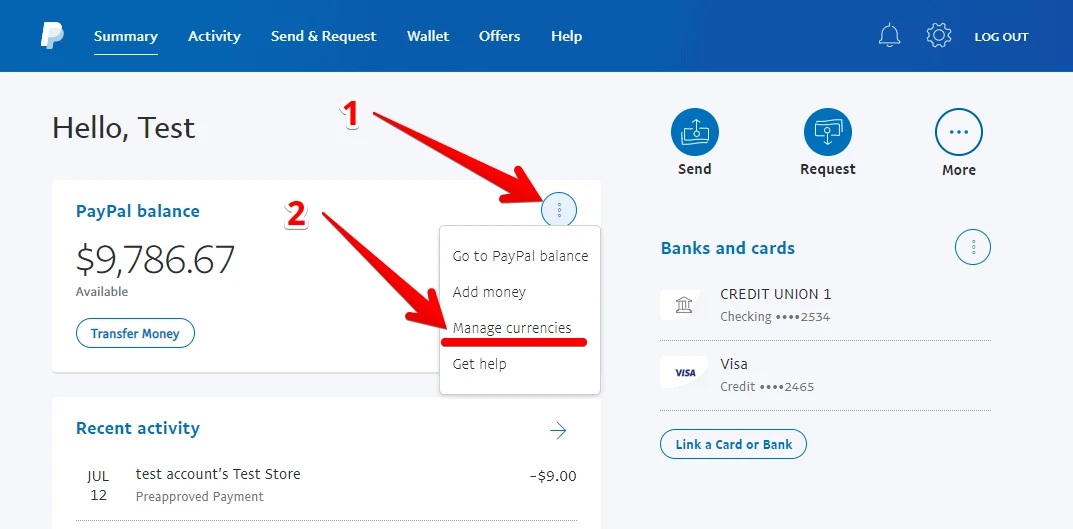

More details are here:
• What payment methods can I use with PayPal?
• How do I change my payment method during checkout?
Cases of refunds, getting invoices, correcting the wrong payments, and stopping the CleanTalk service
Please use these short guides:
The premium notice is still being displayed in the WordPress backend after the payment.
Re-save the plugin settings by following this guide.
My website status is "Waiting for first comment, registration or contact"!
Usually, it takes 10-15 minutes for the website status to change after the plugin is set up.
To test the plugin and force a status update, please use the email address stop_email@example.com in a comment, registration, or contact form.
How do IP/Email blacklists work?
Our plugins and modules rely on a central, shared blacklisting system. These lists update automatically based on real-time spam activity detected from various IP and email addresses.
This works through a feedback loop. For instance, if a user successfully registers on a site but an administrator later deletes their account or marks their message as spam, that action sends feedback to our system. When a specific IP or email address receives three or more negative reports, it is automatically blacklisted.
The system works both ways: if our auto-moderator blocks a message by mistake and you manually approve it, that positive feedback prompts our database to remove the address from the blacklist. Thanks to the large volume of websites connected to our network, this system catches and blocks active spammers within just 1 to 2 hours.
Is CleanTalk Compatible with Cloudflare?
CleanTalk is fully compatible with Cloudflare. The service does not filter CloudFlare's IP addresses (AS13335) using its blacklist database. Instead, the plugin and service rely on other anti-spam tests to filter spam bots.
If you have any issues, please contact us via our support ticket system.
Is CleanTalk Compatible with a website proxy?
CleanTalk is fully compatible with all standard proxy solutions. You can read the details here.
Does the anti-spam plugin work with Accelerated Mobile Pages (AMP)?
Yes, it does. But you have to turn off the option ‘Use AJAX for JavaScript check’ in the Advanced settings of the plugin for it to be fully compatible with Accelerated Mobile Pages.
After the installation, I noticed in the statistics that the number of spam attacks has increased
It's common to see an increase in the number of spam attacks reported in your statistics after installation. This can happen for a few reasons.
- As your website gains visibility from search engine indexing and better search results, it naturally attracts more spambots.
- Protection systems without detailed statistics, like CAPTCHA or question/answer forms, don't give you a complete picture of all the spam attacks your site faces. Our system aims to provide a more comprehensive view.
- Counting methods for spam attacks and spambots differ across various systems, which can explain the discrepancy. We work to provide the most detailed statistics possible.
How do I report a missed spam bot or an incorrect filter?
If you think the service has missed a spam bot or improperly filtered a visitor to the website, you may notify us via the Anti-Spam Dashboard. To do so,
- Log in to your Anti-Spam Dashboard.
- Click the line "Settings" under the name of your website.

- Click the link "Logs" on the left of the page.

4. Click on the "SPAM/Not SPAM" for the appropriate registration or comment on the website.

When you mark a record as SPAM, its email and IP address will be added to your personal blacklist for your website for 30 days.
When you mark a record as Not SPAM, its email and IP address will be added to your personal whitelist for your website for 30 days.
We will resolve the issue within a few days of receiving the report or contact you for further details.
It would also be interesting
- What Features are Included in a CleanTalk Extra Package for Anti-Spam ServiceCleanTalk Extra Package for Anti-Spam Service 45-Day Log Stop-Words Country Block List Customize Response...
- All Installation Manuals of CleanTalk Anti-Spam ServiceCleanTalk Anti-Spam Installation Guides Here you can find our plugin installation guides for popular...
- CleanTalk Plugin Settings TemplatesHow to Use CleanTalk Plugin Settings Templates For the WordPress plugin, we've added the possibility...